Business
Getting Started With Adobe Firefly: A Practical Guide for Creators
Every designer knows the frustration of staring at a blank canvas when a deadline is breathing down your neck.

You already know what the layout needs—the exact mood, the color palette, the way the light should hit the product—but getting there takes hours of digging through stock libraries, masking out bad backgrounds, or tweaking vector nodes by hand. Even when you find a decent stock photo, it is almost always a compromise. The lighting works, but the subject looks staged, or the shot is great, but it is cropped vertically when you need a wide banner.
Some of our links may be affiliate links and if you buy through our link, we might generate some commissions.
When generative AI first showed up, it promised to fix all of that. Instead, early tools gave working creatives a whole new set of headaches: sketchy copyright rules, weird six-fingered hands, clunky Discord servers, and zero connection to the software we actually use every day. Nobody running client projects needed another chaotic toy. We needed something reliable, legally safe, and built directly into our production tools.
Adobe Firefly fills that gap. Built for graphic designers, illustrators, and video editors, it pairs fast concept generation with the hands-on control you expect from Creative Cloud. Let’s break down how Firefly actually works in practice, which features are worth your time, and how to fit it into a real client workflow without losing your creative voice.
Discover Adobe's suite of products.
Why Studios and Freelancers Actually Trust Firefly
Before getting into prompts and sliders, it is worth looking at why design teams and agencies have adopted Firefly so quickly while avoiding other AI generators.
No Copyright Headaches for Client Work
The biggest reason agencies hesitated to use AI on paid campaigns was legal risk. Most early AI models scraped the open web without permission, leaving designers wondering if a generated background might accidentally pull copyrighted art.
Adobe took a cleaner route. They trained Firefly purely on licensed Adobe Stock photos, openly licensed work, and public domain content. When you generate an element for a client website, social ad, or packaging design, it is cleared for commercial use right out of the gate. For enterprise teams, Adobe even backs Firefly outputs with IP indemnification.
Built Right Into Your Existing Apps
You do not have to bounce between a web browser and your design files. While Firefly has a standalone web app for quick moodboarding, its best tools live directly inside Photoshop, Illustrator, Premiere Pro, and Express. You skip the whole cycle of generating, downloading, renaming, and importing—everything happens right on your layers panel.
Real Design Controls, Not Just a Slot Machine
Most text-to-image tools feel like pulling a lever on a slot machine: type some words, cross your fingers, and hope the algorithm gets close. Firefly lets you steer the output using visual references and camera controls. You can lock down a layout using a rough sketch, force the AI to match your brand’s exact color palette, and dial in lighting or lens angles with simple sliders instead of guessing magic words.
Discover Adobe's suite of products.
The Core Firefly Tools You Will Actually Use
Firefly is split into several specialized tools depending on which app you have open. Here are the ones that do the heavy lifting in daily production.
Text to Image (Firefly Web)
The web app is built for turning rough ideas into usable assets fast, without forcing you to memorize complex code tags:
- Aspect Ratios: Flip between square (1:1), portrait (9:16), landscape (16:9), or widescreen (21:9) with one click.
- Content Types: Choose between Photo (realistic lighting, lens depth, and natural skin or surface textures) and Art (illustrations, painterly brushwork, or stylized graphics).
- Visual Intensity and Effects: Adjust how bold the styling gets, or apply preset looks like layered paper, oil paint, or synthwave without cluttering up your text prompt.
Discover Adobe's suite of products.
Generative Fill and Generative Expand (Photoshop)
Inside Photoshop, these two features have completely changed how fast you can retouch and resize assets:
- Generative Fill lets you lasso any part of an image, type a short description, and watch Photoshop add or swap objects while automatically matching the scene's perspective, grain, shadows, and depth of field. Need to drop a silver laptop onto an empty cafe table? Select the surface, type "silver laptop," and pick from three variations on a non-destructive layer.
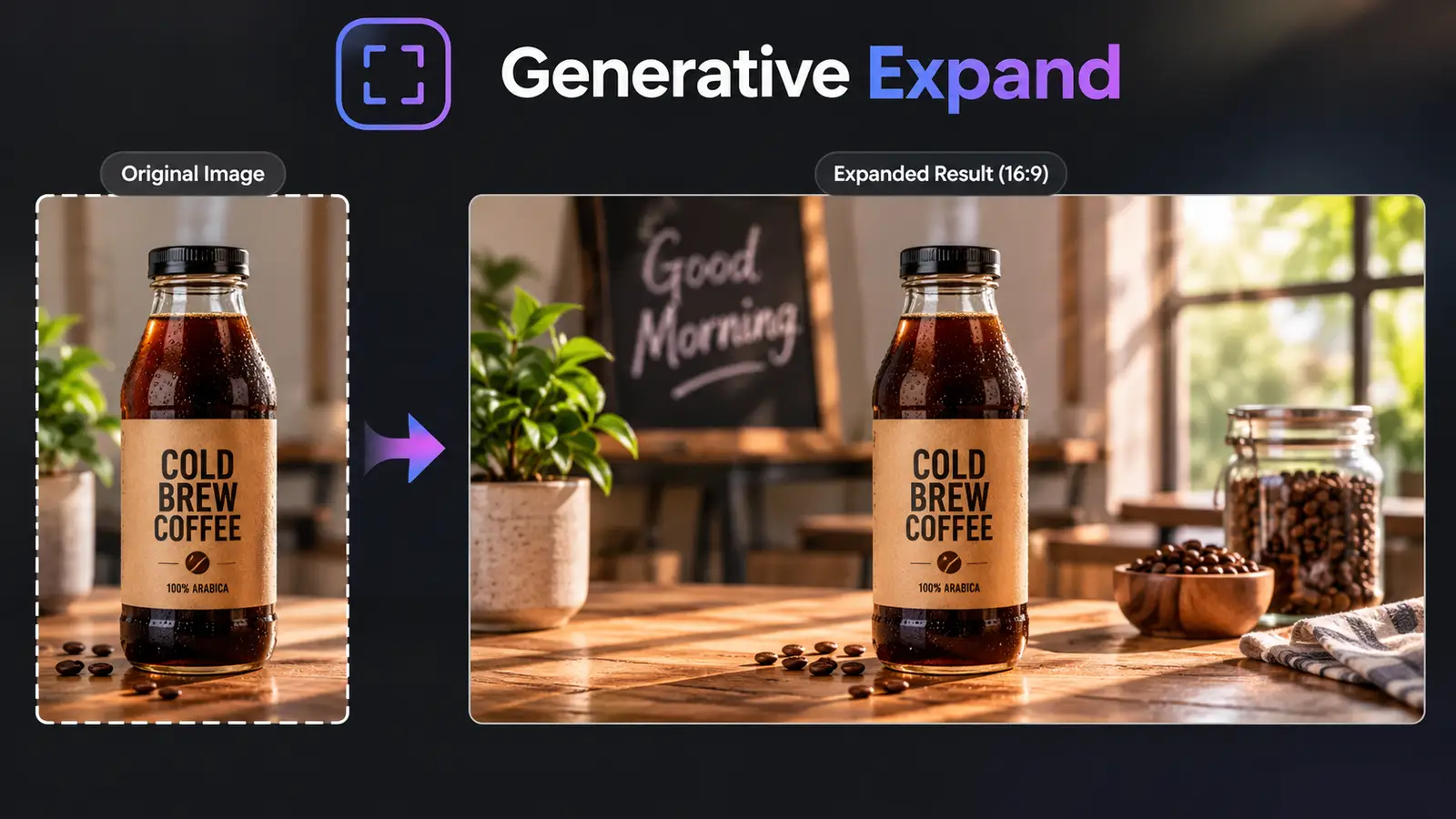
- Generative Expand fixes aspect ratio mismatches in seconds. We have all had a client hand over a tight vertical product shot and ask for a 1920x1080 hero banner or a 160x600 side banner. Just grab the Crop tool, drag the canvas edges out to your target dimensions, and hit Generate. Firefly builds out the missing background seamlessly without stretching a single original pixel.
Structure and Style Reference
These two settings turn Firefly from a novelty into a serious layout tool:
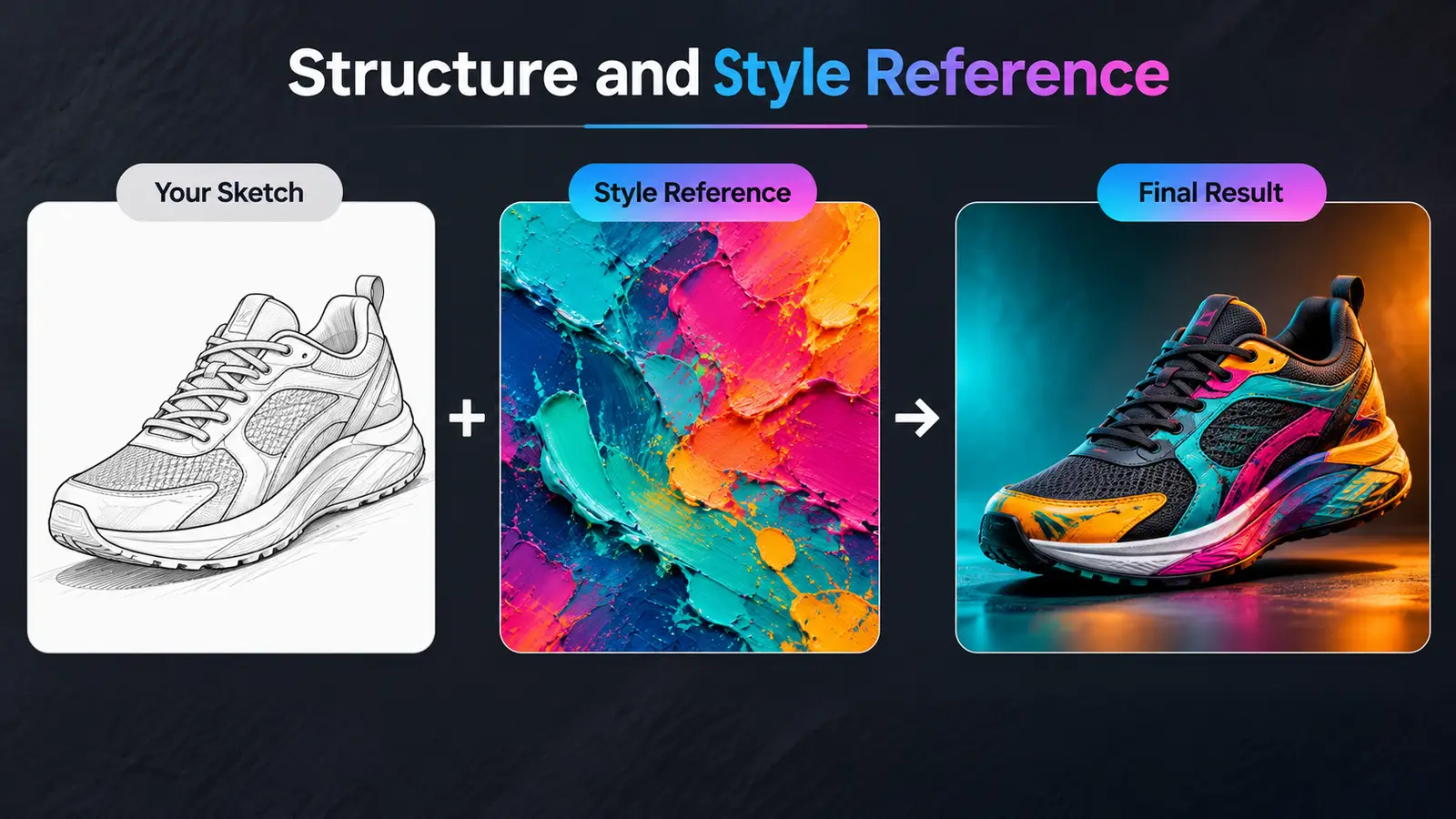
- Structure Reference uses an existing image or rough wireframe as a strict layout guide. You can draw three basic boxes in Illustrator or snap a photo of a napkin sketch, upload it as your Structure Reference, and Firefly will wrap its generated image directly around your geometry.
- Style Reference pulls the look and feel from a reference image—its color grading, brush texture, or lighting mood—and applies it to new prompts. It is a lifesaver when you need ten different campaign visuals to look like they came from the exact same photoshoot or illustrator.
Generative Recolor (Illustrator)
Anyone who works with complex vector illustrations knows how tedious it is to test five different colorways for a client presentation. Generative Recolor lets you select a multi-layered vector graphic, type a mood like "warm 70s autumn sunset" or "muted Nordic minimalism," and cycle through dozens of balanced color harmonies in seconds.
Discover Adobe's suite of products.
Writing Prompts That Actually Work in Firefly
You can skip the spammy buzzwords like "hyper-realistic, 8k, Unreal Engine, trending on ArtStation." Firefly responds much better to clear photographic and art direction terms.
Stick to four simple details when writing a prompt:
- The Subject: Be specific about the main focus. Instead of "a car," write "a vintage olive-green convertible."
- Setting and Background: Ground the subject in a real place. "Parked along a misty coastal cliffside highway overlooking the Pacific."
- Lighting and Atmosphere: Use real lighting terms. "Warm golden hour backlight casting long shadows with subtle lens flare."
- Camera Angle or Medium: Tell Firefly how the shot is framed. "Low-angle street photography shot on 35mm film, shallow depth of field."
Full Prompt Example: "A vintage olive-green convertible parked along a misty coastal highway overlooking the Pacific Ocean, warm golden hour backlight with long shadows, subtle lens flare, low-angle shot on 35mm film, shallow depth of field."
When tweaking a result, only change one piece at a time. If the framing looks great but the tone feels too chilly, use Firefly's sidebar controls to warm up the lighting rather than rewriting your whole prompt and losing the composition.
Discover Adobe's suite of products.

Real-World Workflow: From Rough Idea to Final Banners
Let’s look at how these tools fit together on a real brief. Say you need to build a full ad campaign—complete with a 1920x1080 hero banner, a 1080x1080 social thumbnail, and print layouts—for an eco-friendly outdoor gear brand.
Workflow Overview:
- Step 1: Concepting (Firefly Web) — Test moods, lighting, and initial visual directions.
- Step 2: Visual Lock (Style & Structure Reference) — Generate matching companion shots using your hero image as a style guide.
- Step 3: Multi-Size Compositing (Photoshop) — Use Generative Expand for banner sizes and Generative Fill to add specific gear.
- Step 4: Finishing & Type (Illustrator / InDesign) — Add vector logos, ad copy, and recolored brand icons.
1. Fast Concepting in the Web App
Start in the Firefly web app with the Content Type set to Photo. Test out a few quick scenes: misty pine forests, hikers along rocky ridges, or early morning campsites. Once three or four shots hit the right mood, save them straight to your Creative Cloud Library.
2. Locking in Campaign Consistency
Pick your strongest forest shot and load it as your Style Reference. Now generate the rest of your campaign visuals—a close-up of a hiking boot on wet slate, an overhead flat-lay of a trail map and compass, and a still alpine lake at dawn. Because your Style Reference is locked, every single image will share the same misty atmosphere, muted greens, and soft morning light.
3. Resizing and Compositing in Photoshop
Open your main hero image in Photoshop. When the digital marketing team asks for a wide 1920x1080 website banner and a square 1080x1080 social thumbnail from the same file, use Generative Expand to extend the canvas edges. Photoshop fills in matching pine trees and fog so you have plenty of negative space for text.
Next, grab the Lasso tool and use Generative Fill to place a canvas daypack resting against a boulder on the trail. Because Photoshop drops every generated element onto its own layer with an automatic mask, your original background stays completely untouched. You can color-grade the backpack or brush away harsh edges just like any standard composite.
4. Typography and Vector Polish
Bring your finished PSD files into Illustrator or InDesign to lay out your headlines, body copy, and call-to-action buttons. If your brand's standard vector icons clash with the moody forest tones, run Generative Recolor in Illustrator to pull earthy greens and warm ochres directly from the background photo.
Discover Adobe's suite of products.
Content Credentials: Keeping Clients In the Loop
When you hand off final files to corporate clients, transparency matters. Adobe builds this directly into exports using Content Credentials—essentially a tamper-proof digital label tucked into the file's metadata.
Whenever Firefly touches an asset, Content Credentials automatically log:
- When the image was created or edited.
- Which Adobe tools and AI models were used.
- A transparent tag showing where generative AI assisted in the workflow.
If a client's legal team ever asks how an ad visual was sourced, that metadata gives them clean, verifiable proof that the artwork was built using commercially safe tools.
Discover Adobe's suite of products.
Three Common Mistakes to Avoid
- Expecting One-Click Perfection: Firefly is a rapid visualization engine and asset generator, not a replacement for fundamental design discipline. The best results come from using Firefly outputs as base plates, textures, or composite elements that you finish with typography, color grading, and balance.
- Overcrowding Prompts: Keep your text focused on concrete visual subjects. Adding twenty conflicting adjectives often confuses the engine. Lean on Firefly's UI toggles for style, lighting, and composition rather than burying those instructions inside a massive paragraph.
- Ignoring Resolution Limits: Firefly exports sharp, high-resolution imagery suitable for digital displays, social media, and moderate print sizes. However, for massive billboard printing, plan to bring generated assets into Photoshop for smart upscaling, selective sharpening, and noise balancing.
- AI tools should never turn you into a spectator just clicking a button and hoping for the best. Used the right way, Adobe Firefly takes the tedious grunt work off your plate—extending awkward backgrounds, testing colorways, and mocking up early ideas—so you can spend your time on actual art direction and craft. Open up Photoshop or the web app, test a few references on your next project, and make the workflow yours.