Business
Adobe Firefly for Small Businesses: Creating Campaign Assets Faster
Running marketing for a small business usually means wearing five different hats before lunchtime.
You are the product developer, the customer support lead, the copywriter, and very often, the default graphic designer.
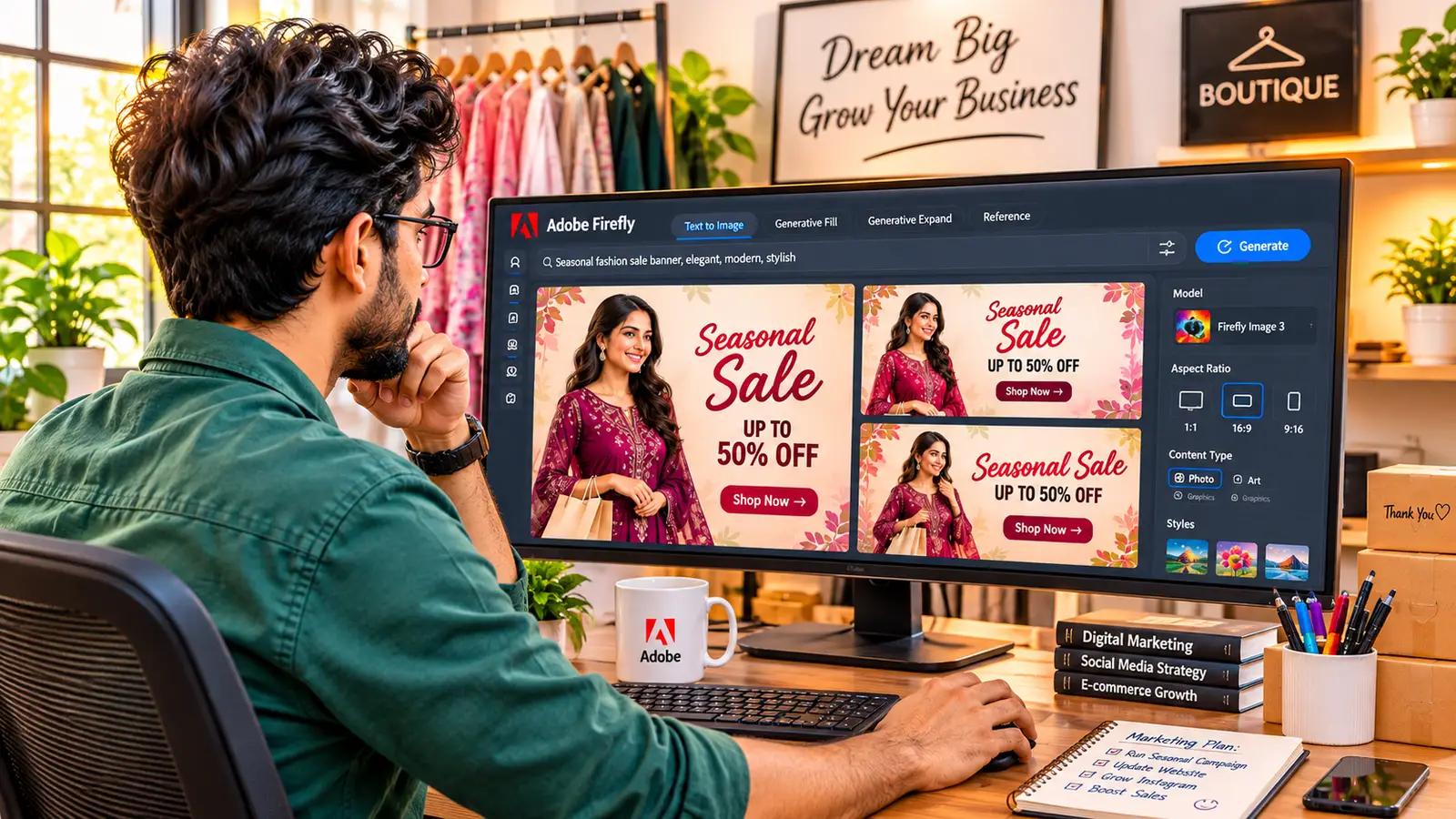
When a seasonal promotion or a new product launch comes around, the visual workload can be overwhelming. You need social media posts, a website hero banner, an email newsletter graphic, digital ad variations, and printed flyers for retail packaging.
Some of our links may be affiliate links and if you buy through our link, we might generate some commissions.
For larger brands with five-figure monthly agency retainers, producing a twenty-asset campaign is standard routine. For a lean business or a solo founder, it is a persistent bottleneck. Hiring commercial photographers and staging location shoots costs thousands of dollars. Relying on generic stock photos often feels disconnected from your brand, and manually tweaking templates across half a dozen canvas sizes eats away hours that should be spent serving customers and driving sales.
Discover Adobe's suite of products.
Adobe Firefly offers small businesses a practical way to break that bottleneck. Instead of operating as a complicated AI toy that spits out unpredictable art, Firefly works like an on-demand commercial design assistant. It lets lean teams generate custom lifestyle photography, adapt single visuals across every advertising channel, and maintain brand consistency—all within a legally safe environment. Here is a practical, grounded guide to using Adobe Firefly to build multi-channel marketing campaigns faster without sacrificing quality.
Why Small Businesses Need a Dedicated Generative Engine
Before looking at specific features, it is worth understanding why standard AI image generators often fall short for small commercial brands.
Commercial Safety With Zero Legal Ambiguity
Small businesses cannot afford legal disputes over intellectual property. Many first-generation AI tools were trained by scraping unvetted imagery from the public internet, creating lingering questions about copyright ownership and commercial licensing.
Adobe trained Firefly exclusively on licensed Adobe Stock assets, openly licensed work, and public domain materials where copyright has lapsed. When you generate a background for an Instagram ad or packaging card in Firefly, you own the commercial rights to publish it. For business owners, that legal certainty eliminates a major worry when launching public campaigns.
Discover Adobe's suite of products.
Practical Design Controls Instead of Prompt Guesswork
Most business owners do not have the time to master prompt engineering. Typing a paragraph of vague buzzwords and crossing your fingers usually results in wasted hours. Firefly provides structured interface buttons—like aspect ratio selectors, lighting toggles, and composition matchers—so you can guide the output like an art director rather than guessing keywords.
High-Impact Campaign Assets Small Businesses Can Build in Minutes
You do not need to overhaul your entire marketing workflow on day one. Focusing on four or five high-friction production tasks can save hours on every campaign launch.
1. Studio-Grade Lifestyle Photography on a Shoestring Budget
E-commerce conversion rates depend heavily on how your product looks in real-world settings. A plain white-background shot shows what the product is, but a warm, contextual lifestyle shot shows how it feels to own it. Staging those shoots—renting a kitchen, styling props, and hiring a photographer—is often financially impossible for new product lines.
Inside Firefly’s Text to Image workspace, you can generate custom lifestyle backdrops that match your exact product category:
- Natural Lighting Options: Set the lighting control to Warm Golden Hour for organic skincare or artisanal food, or switch to Clean Studio Softbox for modern tech accessories and hardware.
- Camera Depth Control: Use shallow depth of field settings to blur out background textures naturally, ensuring your product remains the primary focus.
- Contextual Framing: Generate realistic tabletop scenes, outdoor patios, or modern living rooms tailored specifically to your audience’s aesthetic.

2. Multi-Channel Ad Resizing via Generative Expand
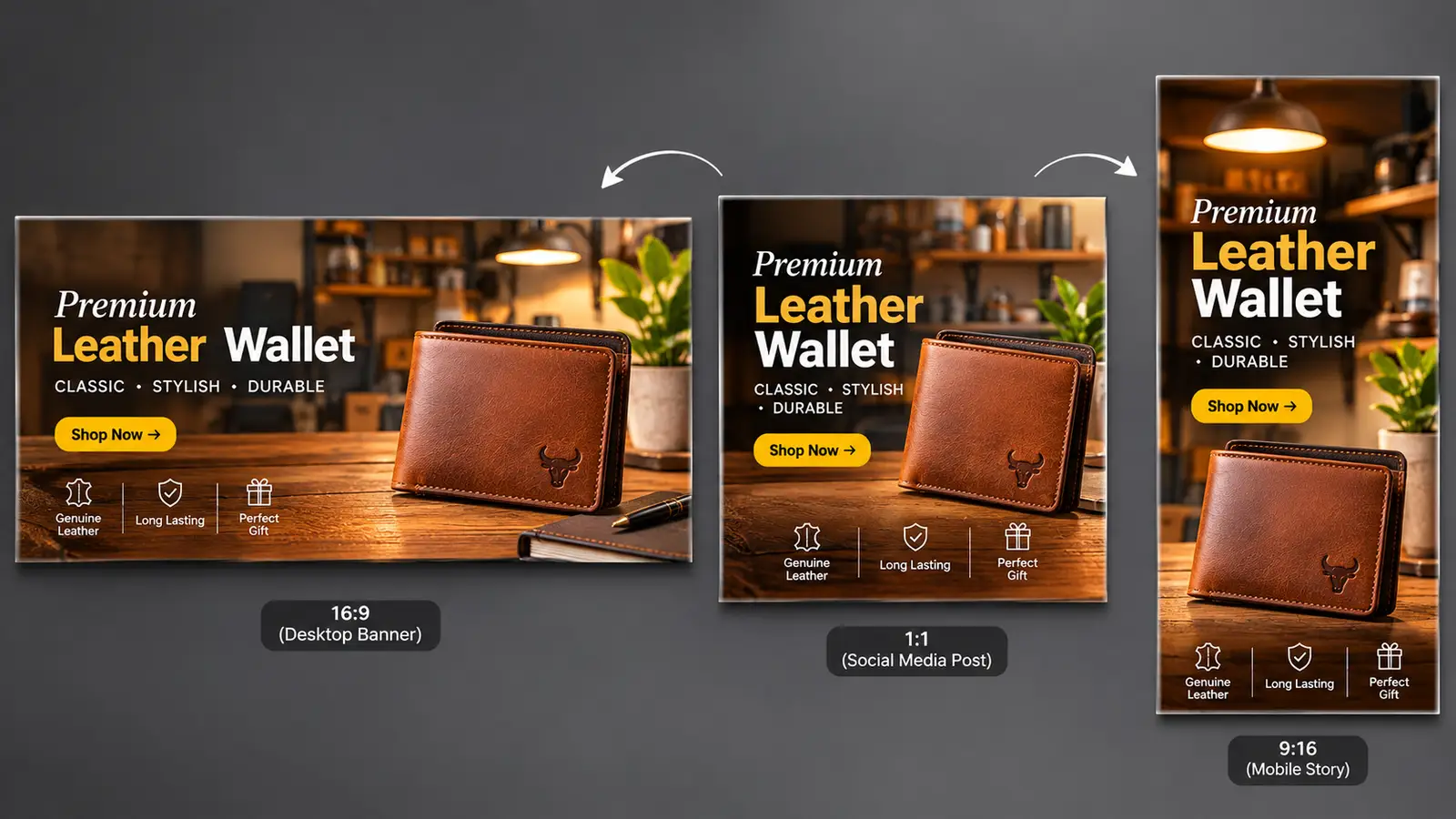
One of the most exhausting chores in digital marketing is resizing a single graphic for multiple platforms. A visual that looks balanced as a square Instagram post usually gets awkwardly cropped when stretched into a 16:9 website hero banner or a vertical 9:16 TikTok ad.
Firefly’s Generative Expand solves this issue non-destructively:
- Preserve the Core Subject: Select your primary square product photograph and drag the canvas edges outward to widescreen or vertical dimensions.
- Seamless Background Synthesis: Firefly automatically generates matching tabletop textures, architectural walls, or natural scenery to fill the new space, keeping your original product crisp and untouched.
- Built-In Copy Space: Expanding the canvas naturally creates clean negative space on the left or right, giving you the perfect area to place headlines, discount codes, and call-to-action buttons without covering your product.
Discover Adobe's suite of products.
3. Locking Brand Identity Across Assets With Style Reference
The hallmark of amateur marketing is inconsistency: an Instagram feed where every post features a completely different color temperature, contrast level, or photography style.
Firefly’s Style Reference feature allows small businesses to establish a unified aesthetic across all promotional materials:
- Upload a Reference Image: Select an existing photo that perfectly captures your brand’s personality—whether that is moody, dark-wood artisan tones or bright, minimalist Scandinavian pastels.
- Apply the Visual Style: When generating companion visuals for a campaign—such as email headers, background patterns, or promotional textures—Firefly borrows the color grading, contrast, and atmospheric warmth from your reference.
- Generate Companion Visuals: Every asset you produce for that campaign shares the same visual language, making your brand look polished and cohesive across touchpoints.
Discover Adobe's suite of products.
4. Custom Promotional Badges and Merchandise With Text to Vector
If your business sells physical merchandise or uses branded packaging stickers, relying on pixel-based raster graphics can cause blurry, low-quality prints.
Firefly’s Text to Vector Graphic module creates scalable vector paths that stay sharp at any print size:
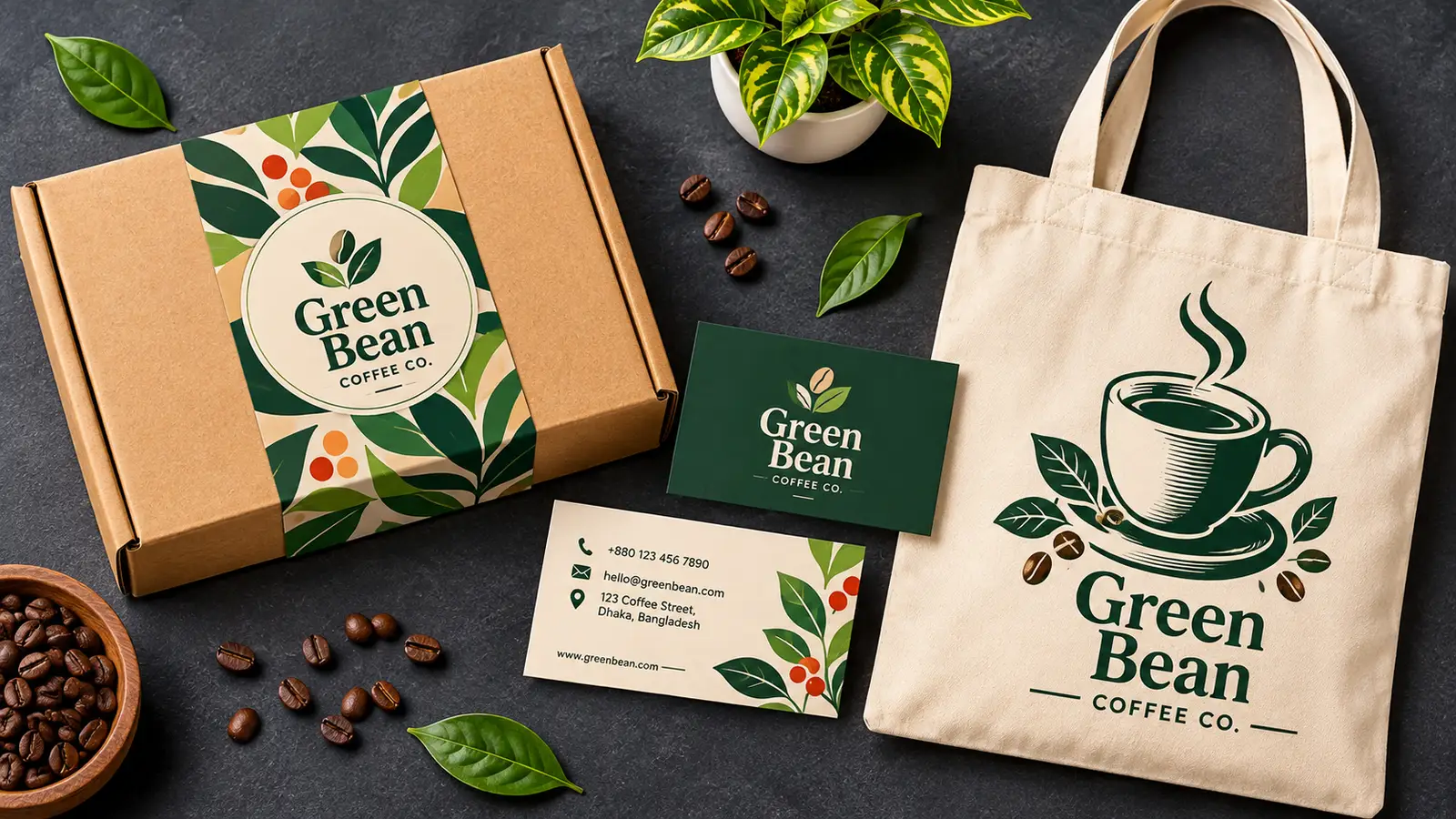
- Packaging Badges and Stickers: Generate clean, flat-style vector badges for seasonal sales (such as "Handcrafted in Small Batches" or "Holiday 2026 Collection").
- Merchandise Art: Build simple, bold illustrations for branded tote bags, t-shirts, or coffee sleeves without needing advanced vector drawing skills.
- Instant Palette Testing With Generative Recolor: If your brand colors shift seasonally—such as moving from bright spring tones to rich autumn hues—Generative Recolor lets you test new color schemes across complex vector graphics in seconds using simple text descriptions.
Step-by-Step Campaign Workflow: Launching a 48-Hour Seasonal Promotion
To see how these individual tools come together during an actual marketing push, consider a practical scenario: an artisanal home fragrance brand launching a weekend flash sale for their autumn candle collection.
Step 1: Rapid Moodboarding and Art Direction
Start in the Firefly web workspace. Set the Content Type to Photo and test a few seasonal concepts: a rustic oak fireplace mantle, a cozy reading nook with warm knit blankets, or an autumn dining table with dried eucalyptus. Within ten minutes, you can generate and review a dozen visual directions. Pick the strongest scene and save it as your campaign anchor.
Step 2: Generating Compositions with Negative Space
When creating your main hero image, remember that you need room for promotional copy (such as "Autumn Flash Sale: 20% Off This Weekend"). Use Firefly’s Structure Reference or guide the prompt to position props on one side of the frame. This leaves a clean, uncluttered background area on the other side, ensuring your sale headline will be readable on mobile screens.
Step 3: Expanding Across Your Marketing Channels
Take your approved hero background and bring it into the Generative Expand workspace:
- For the Website Hero Banner: Expand the canvas horizontally to 1920x1080. Firefly extends the warm room environment smoothly to the edges.
- For the Instagram Story / Reels Ad: Expand the canvas vertically to 1080x1920, creating vertical height that fits phone screens naturally.
- For Custom Additions: If you need to add a seasonal detail—like a small brass candle snuffer or a decorative match striker on the table—use Generative Fill to paint a small selection and add the object with a brief text prompt.
Step 4: Laying Out Typography and Exporting
Bring the generated background plates into your layout app (such as Adobe Express, Photoshop, or your preferred design tool). Drop in your transparent product cutouts, add your brand's primary font, insert your discount code, and add a bold call-to-action button. Export the files, knowing that Firefly’s embedded Content Credentials record the ethical provenance of the imagery automatically.
Discover Adobe's suite of products.

Three Practical Rules for Getting Reliable Results
While Firefly is approachable, following a few baseline best practices will keep you from wasting time or generation credits.
1. Do Not Ask the AI to Render Your Actual Product
A common beginner mistake is typing "a jar of Smith & Co. lavender face cream" into an image generator and expecting an accurate result. AI models do not know your proprietary logo, label typography, or exact packaging dimensions; they will generate plausible-looking gibberish instead.
The Better Approach: Use Firefly to generate the stunning, photorealistic environment—the marble sink, the sunlit wood table, or the morning light rays. Then, paste your real, high-resolution product photography onto that background plate. This ensures your brand identity stays 100% accurate while saving you the cost of a physical studio shoot.
2. Keep Prompts Short and Lean on Interface Buttons
You do not need to pack your prompts with twenty contradictory adjectives. Instead of typing "photorealistic, hyper-detailed, high quality, 8k resolution, cinematic lighting," simply describe the subject and setting clearly (for example: "A linen table runner on an oak dining table with soft morning sunlight and blurred garden greenery in the background"). Let Firefly’s built-in sidebar toggles handle the photographic style, camera perspective, and lighting tone.
3. Check Resolution Before Printing Physical Banners
Firefly exports sharp, high-resolution imagery that looks crisp on web pages, email newsletters, and mobile screens. However, if you plan to print a large trade show backdrop or an in-store banner, remember to run the generated asset through an upscaling tool or adjust resolution in an image editor first to preserve fine details when printed at large scale.
Discover Adobe's suite of products.
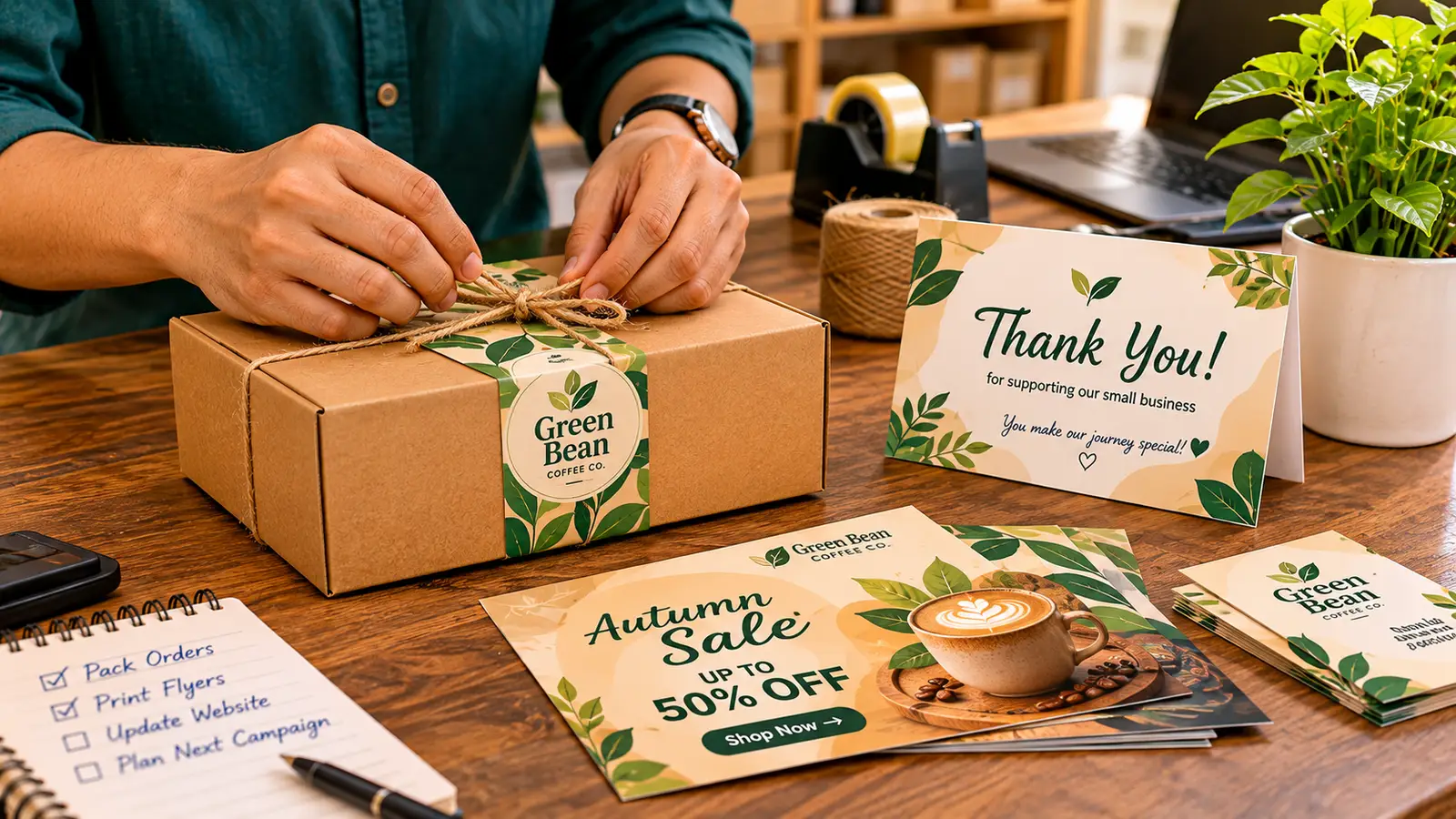
Generative AI does not need to replace the authentic heart of your business. When used intentionally, Adobe Firefly takes care of the repetitive, expensive, and time-draining hurdles of asset production—generating custom backdrops, resizing campaign assets, and testing visual palettes. By offloading that heavy lifting, small business owners and lean marketing teams can stop wrestling with blank screens and spend their energy where it matters most: building great products, connecting with customers, and growing their brand.